
Troubleshooting connections and routing
Find which part of the path failed before changing timeouts, server trust or system settings.
Start with the failing layer
| Symptom | First checks |
|---|---|
| Profile will not save | Required fields, port range, unique listeners, valid socket path |
| SSH will not connect | Server address/port, network reachability, SSH account and credentials |
| Unknown or changed host key | Compare a trusted fingerprint; do not bypass verification |
| SSH connects, service fails | Destination address/port, target service, forwarding policy |
| Browser still uses direct traffic | Application proxy settings, matched route and Default action |
| Only names fail | DNS resolution path, hostname exceptions, proxy-side DNS |
| LAN browser fails | Same network, selected Mac address/port, authentication, firewall/isolation |
| Phone app ignores sharing | Whether the app honors its Wi-Fi proxy or supports SOCKS |
| UDP is absent | Actual client UDP usage, UDP ASSOCIATE support, remote relay availability |
Read connection state correctly
Connecting means setup is still in progress. Connected describes the SSH/profile state; it does not prove every remote destination accepts traffic. A failed target should be investigated with that target's error and timing.
The blue/red connection-path arrows explain direction and state, not measured throughput. Traffic totals include SSH protocol overhead. A temporarily blocked connection can remain established while its forwarding traffic is blocked.
Inspect logs
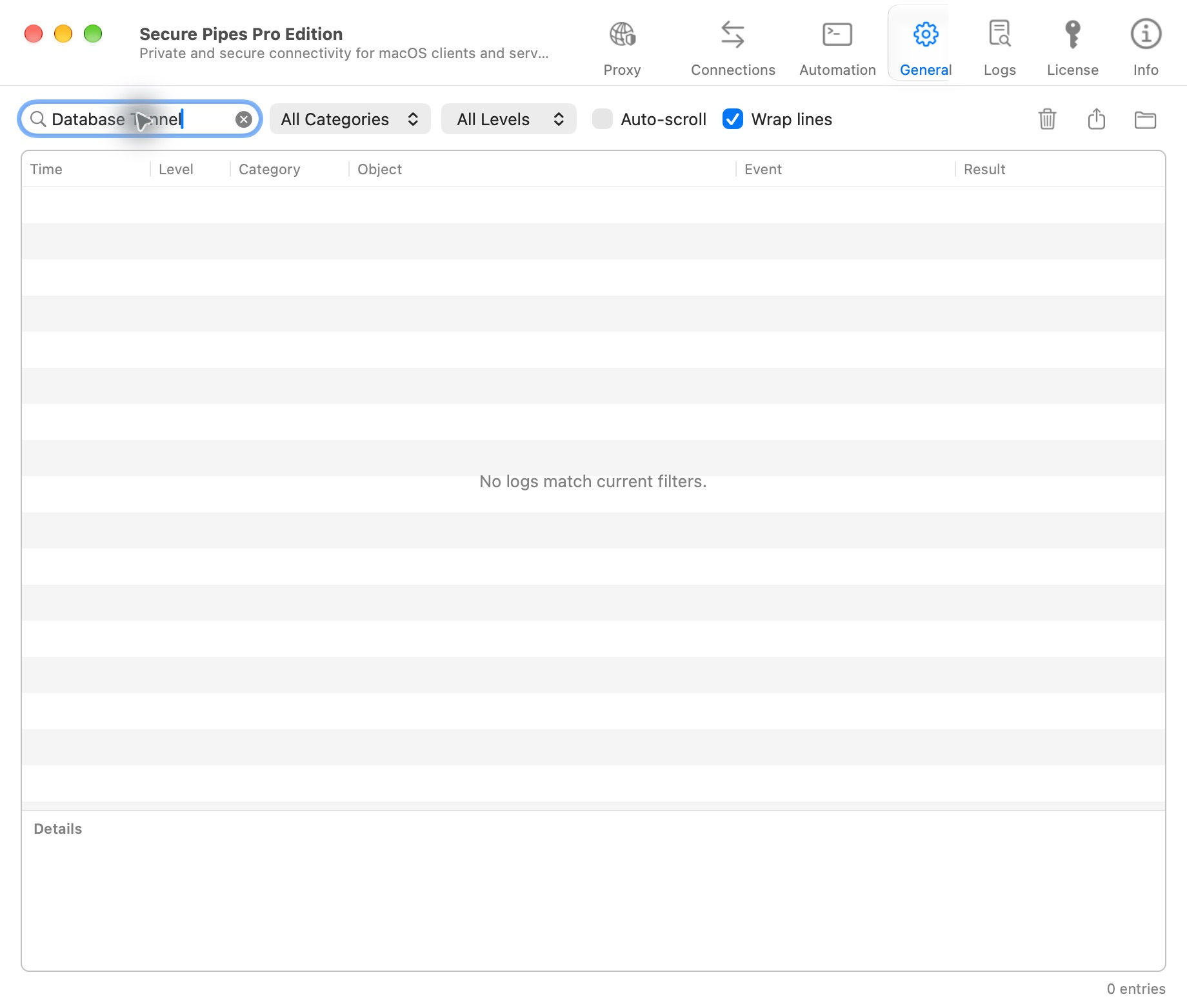
Open Logs, search for the profile or relevant object, and filter category/level. Select a row to inspect details. Auto-scroll and Wrap lines affect readability; they do not change connection behavior.
For transparent proxying, also check the Proxy page's logs and active connections. Correlate the source, application, destination, rule/proxy, protocol and time. An empty filtered result means no matching log entries, not proof that a connection succeeded.
Export only the relevant time range where possible. Review exported logs for private addresses, usernames, paths, tokens and other sensitive content before sending them to support.
Common forwarding problems
- Address already in use: another listener owns the port. Pick an unused high port; don't kill an unidentified process blindly.
- Remote bind remains loopback: ask the server administrator about
GatewayPorts clientspecifiedand other forwarding restrictions. - Wrong destination: remember that a local forward's remote address is resolved from the SSH server, while a remote forward's local target is reached from your Mac.
- Only one mapping fails: inspect that row's listener/target and the error's row number.
- Saved changes have no effect: reconnect after saving; an existing stream can keep its original routing decision.
LAN and mobile applications
A working phone browser does not mean all phone applications use its manual HTTP proxy. App stores, downloads, background services and QUIC can use different paths. First identify whether a request reaches the Mac and which rule it matches.
For SOCKS5 UDP, keep the client's TCP control connection open. A Python process does not have to be permanently visible from SSH startup; the relay is used when UDP is forwarded. Short connections and ordinary closes alone are not proof of a fault.
Report an issue safely
Under Info, choose Report an issue. Include the app/macOS version, connection type, expected behavior, actual behavior and approximate failure time. Add a redacted log excerpt and a relevant App window screenshot.
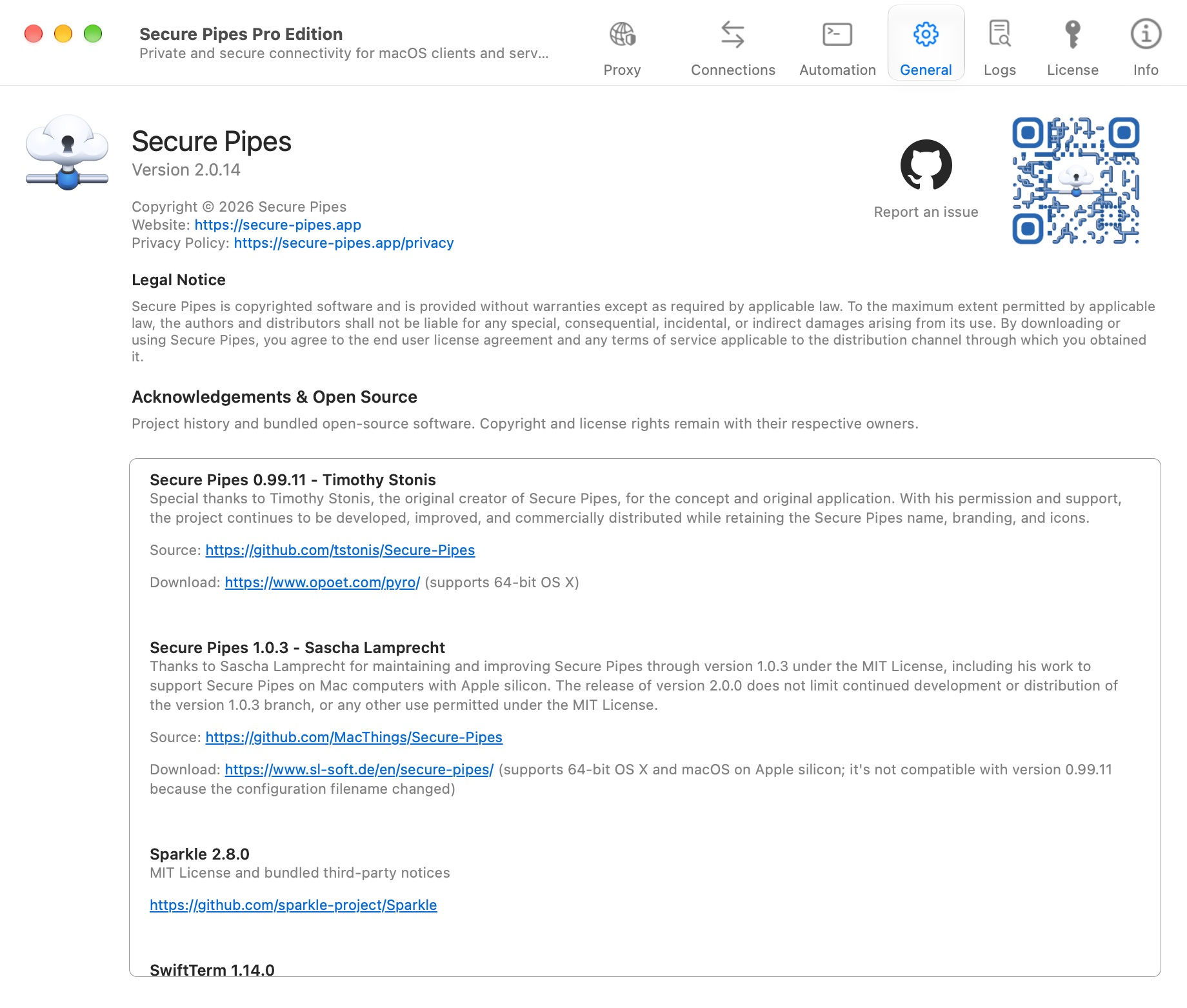
Never include passwords, private keys, authentication codes, issued licenses, real backups or a usable QR/password pair. See the issue template's security reminder before submitting.
Based on Secure Pipes 2.0.14 · Updated October 18, 2026