
Transparent proxy and proxy servers
Route supported Mac application traffic with rules instead of configuring a separate proxy inside every application.
The routing model
The Proxy page contains Servers, DNS, Rules and Logs. Proxy servers are reusable destinations. Rules decide whether traffic uses a server, connects directly or is denied. A SOCKS-over-SSH profile can supply an upstream proxy; the routing engine is separate from the SSH profile itself.
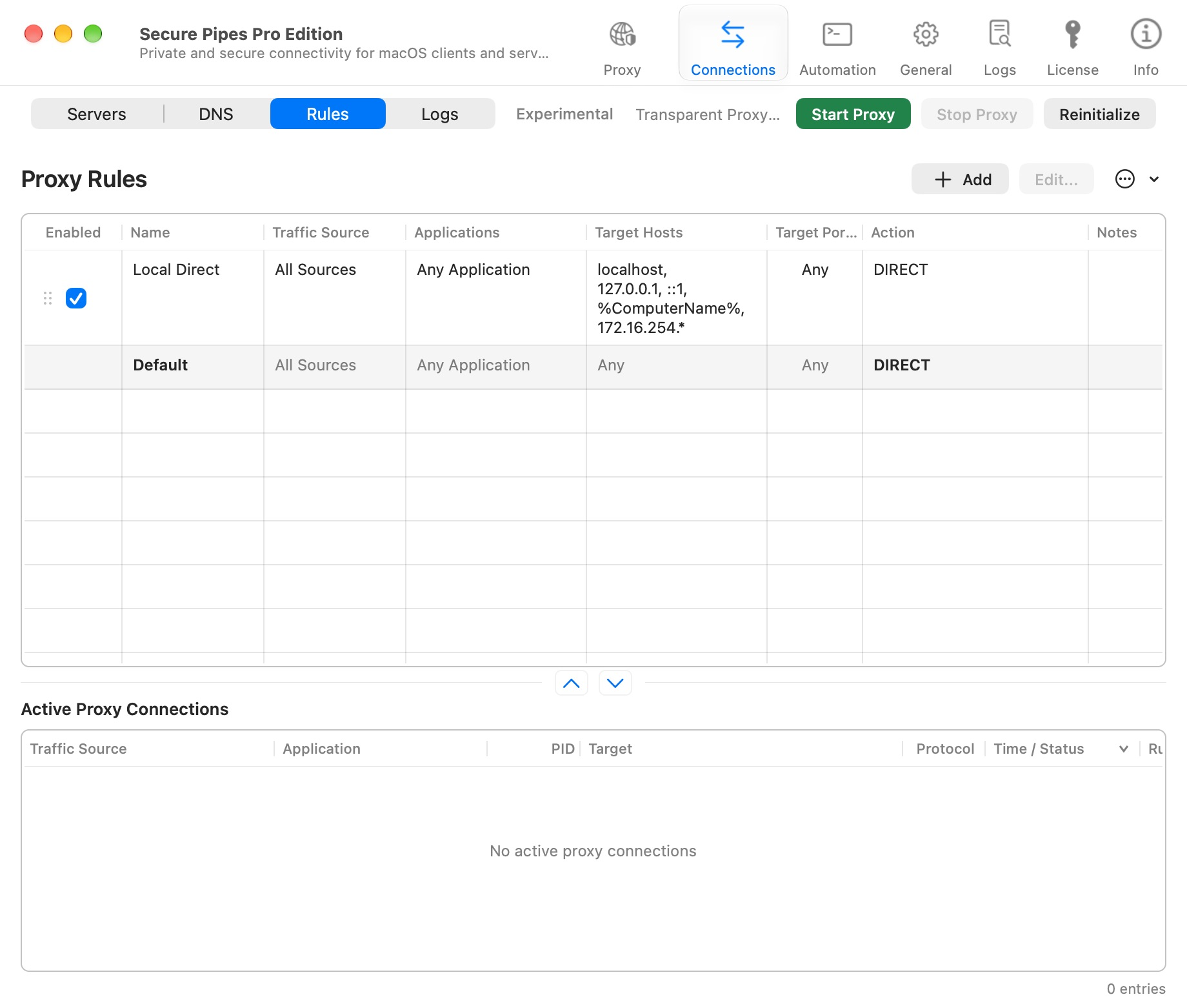
Transparent Proxy is experimental and requires Pro after the shared seven-day trial. Installing Secure Pipes alone does not enable interception. macOS must approve its system extension.
Add a proxy server
- Open Proxy → Servers → Add.
- Give the server a recognizable name and choose its protocol.
- Enter the proxy host/IP and port. Enable authentication only if that proxy requires it, and enter its credentials.
- Save. Use Test Connection where appropriate; the test uses the current settings to open a CONNECT tunnel to
example.com:443.
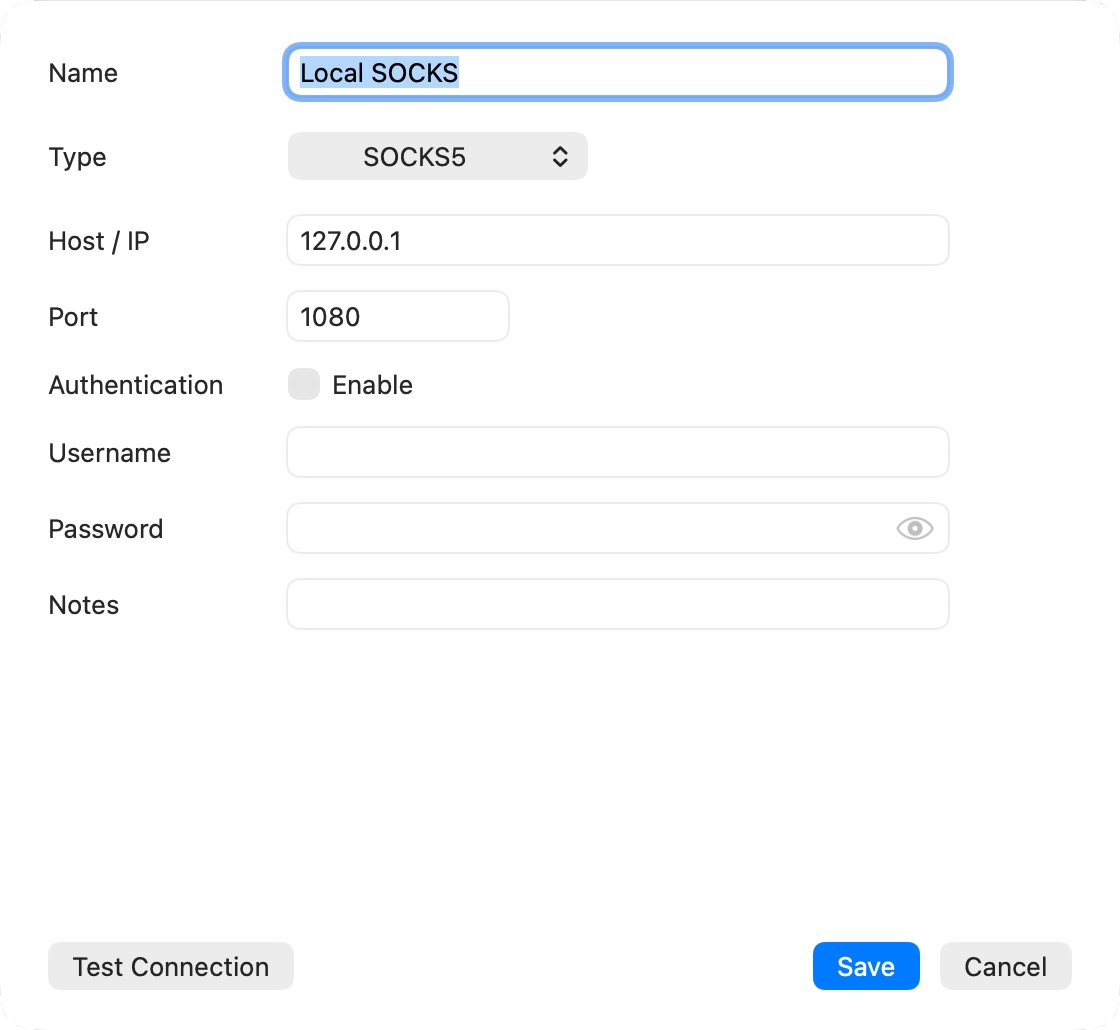
For a local SSH SOCKS profile listening on port 1080, an endpoint can be 127.0.0.1:1080 with type SOCKS5. A manually configured endpoint must actually be running. Do not confuse an SSH server's port 22 with the SOCKS service port.
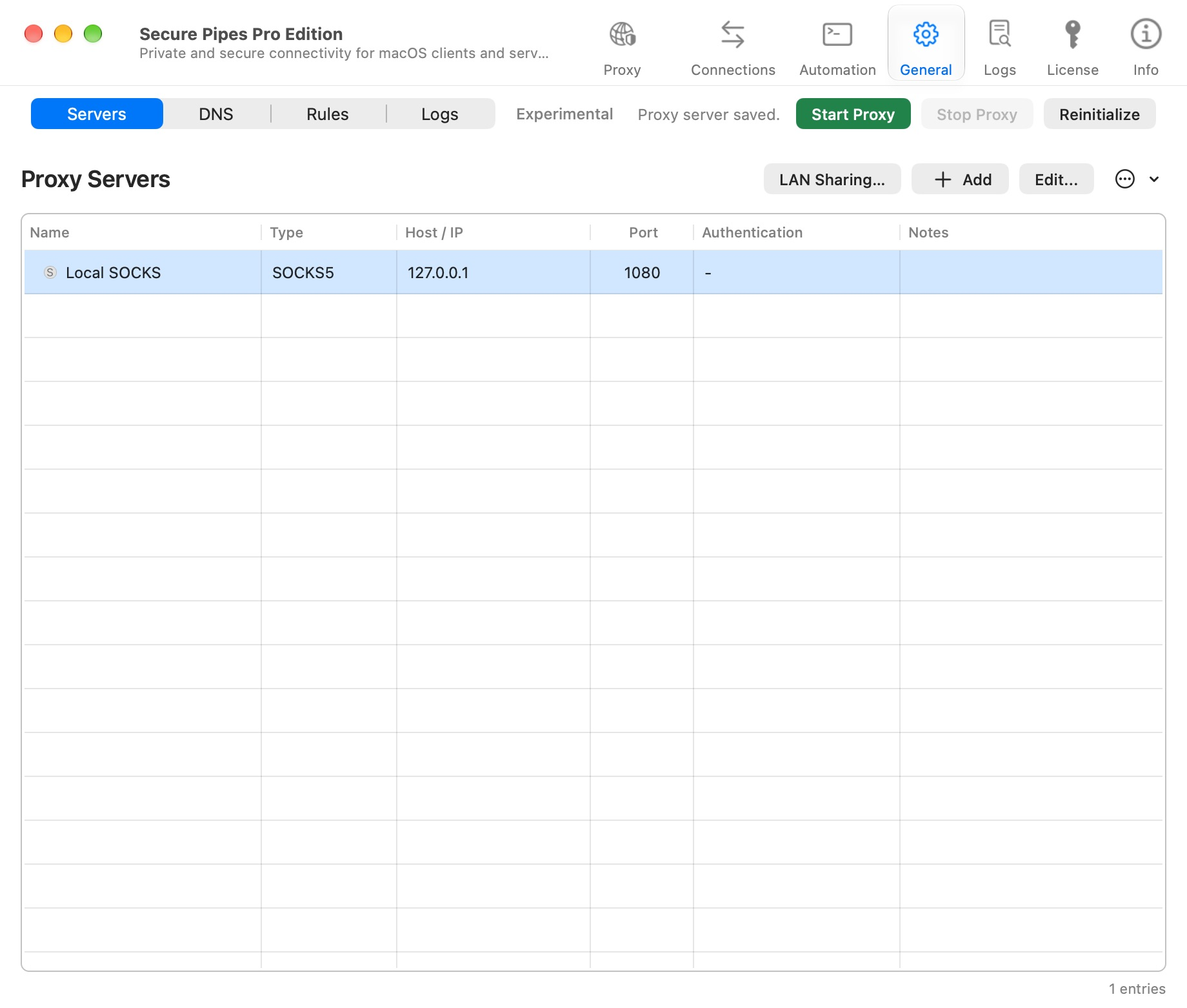
Create rules before starting
Open Rules, add the desired route and select its proxy server. Preserve local/direct access where needed, and inspect the Default route. Merely adding a proxy server does not make all traffic use it.
See routing rules for source selection, applications, destinations and rule ordering, and DNS for name resolution.
Start and approve the extension
Click Start Proxy. Follow the macOS extension approval instructions if requested. The location and wording vary by macOS release; newer releases expose network extensions under System Settings. A system approval must be completed by the Mac's user.
Wait for a running state, then open a known destination in the intended application. Check Active Proxy Connections for its source, application, target, protocol and matched rule/proxy. A configured rule is not evidence that the current browser request matched it.
Stop and troubleshoot
Click Stop Proxy to stop transparent interception. This differs from stopping one upstream SSH profile. Verify system status when a network environment changes, after sleep/wake, or when an upstream becomes unavailable.
Reinitialize removes and reinstalls the system extension. It is a recovery action, not a routine first step for every failed website. First read the error, check the upstream and inspect the matched route.
Explicit proxy failure is not permission to assume traffic connected directly. Configure any fallback deliberately and inspect its security implications.
Share routing with another device
Use Servers → LAN Sharing… for a separate HTTP/SOCKS entry. LAN traffic uses routing rules but does not have your Mac applications' identities. See LAN proxy sharing.
Based on Secure Pipes 2.0.14 · Updated October 18, 2026