
SSH hosts and authentication
Save a reusable server profile, choose an authentication method and verify the SSH server you are connecting to.
Save a host preset
Open Connections → + → New Host Preset…. A host preset stores SSH connection details for reuse; it does not create a forwarding listener by itself.
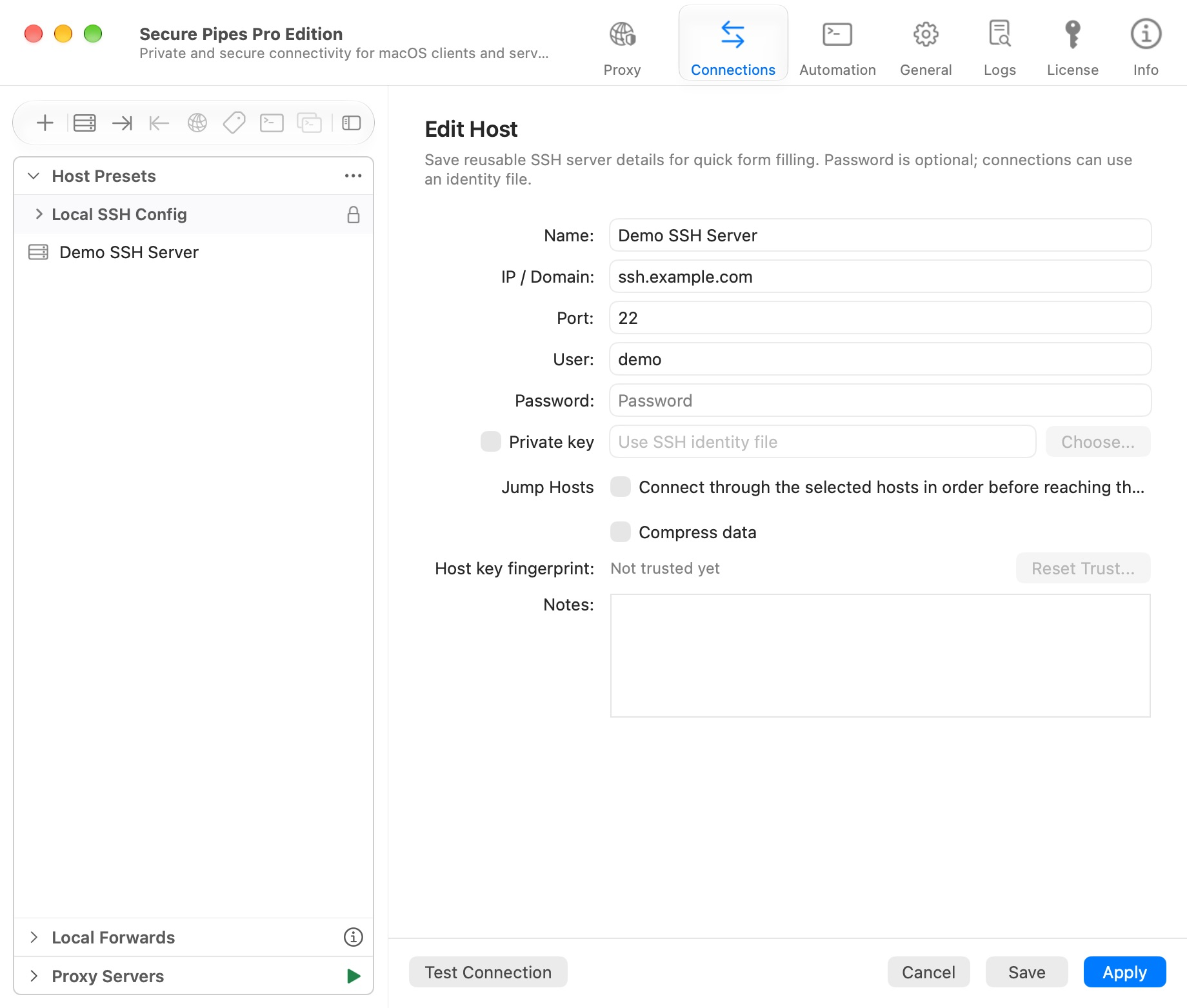
| Field | Meaning |
|---|---|
| Name | A display name you will recognize in host selectors |
| IP / Domain | The SSH server hostname or IP address, without a URL scheme |
| Port | The server's SSH port; commonly 22 |
| User | The remote SSH account |
| Password | Optional saved SSH password |
| Private key | A user-selected SSH identity file |
| Jump Hosts | Ordered intermediate hosts used to reach the destination |
| Compress data | Enable SSH compression; usefulness depends on the workload |
| Host key fingerprint | The saved identity of the server, once trusted |
| Notes | Your description of this host |
Click Save to finish. In forwarding editors, choose the host using Preset Host. Choose Custom to enter independent endpoint settings instead. Selecting a preset also changes the labels shown in the connection overview.
Passwords, keys and challenges
Use the method allowed by your server administrator. For a key, choose the private-key file rather than its .pub public-key companion. Keep that file protected and available at its selected location. A passphrase or interactive challenge may still be required.
Server-requested OTP/2FA prompts belong to SSH authentication. They are separate from the optional OTP used to unlock the Secure Pipes interface. Secure Pipes responds to server challenges; it does not generate your server's OTP codes.
FIDO2/security-key authentication depends on compatible hardware, server support and local device access. Check the License comparison and the current setup before relying on it.
Verify server trust
On the first connection, obtain the expected host-key fingerprint through a trusted channel and compare it with the app's prompt. A password or private key authenticates you to the server; host-key verification helps authenticate the server to you.
If a previously trusted key changes, stop and confirm the cause with the administrator. A legitimate server rebuild can change a key, but so can an attack. Use Reset Trust… only after verifying the replacement. Do not turn off strict checking to bypass a mismatch.
Jump hosts
Enable Jump Hosts, choose intermediate hosts in their required order, and keep the final SSH server in the main server fields. Each hop must be reachable and permit the next connection. Interactive authentication and jump hosts can restrict multi-session acceleration.
Sequential jump hosts are a Pro feature with the shared seven-day trial. Ordinary single-server profiles remain separate from that feature.
Local SSH configuration
Local SSH Config lists discovered aliases from your Mac's SSH configuration. These are read-only entries, not the same as editable Secure Pipes presets. Where offered, copy an alias as a preset to create an independent record. Do not assume every machine-specific SSH directive transfers with a QR code.
Host actions
Right-click a host to edit or duplicate it, test the connection, open a console or SFTP, create a forwarding profile, or generate a share QR code. A connection test requires a real reachable server; saving a host alone does not verify it.
Before deleting or changing many hosts, export a backup. To share a connection without sharing its credentials, use share QR codes.
Based on Secure Pipes 2.0.14 · Updated October 18, 2026