
SOCKS proxy over SSH
Create a local SOCKS endpoint for proxy-aware applications, with optional UDP relay and SSH multi-session acceleration.
Create a SOCKS profile
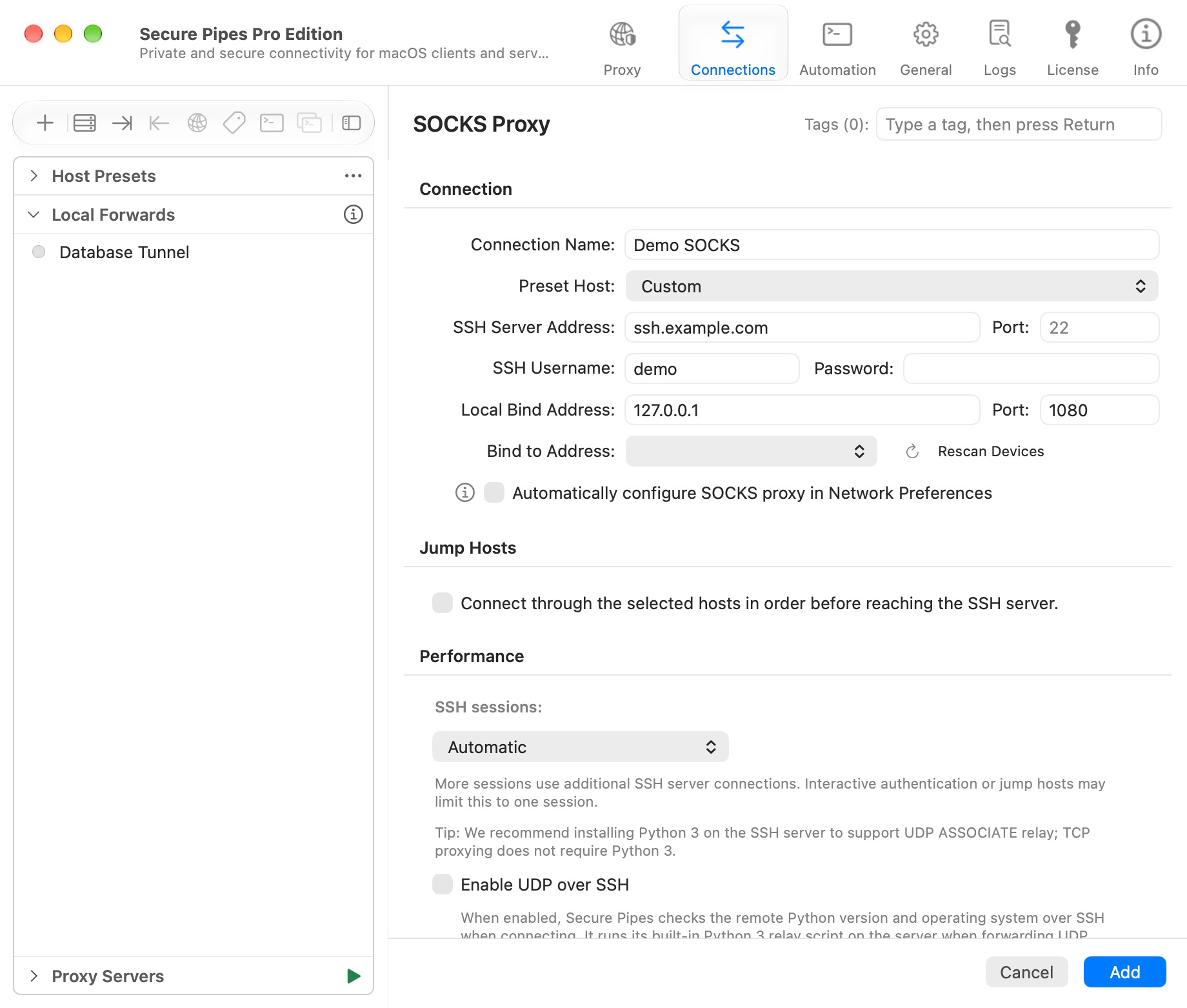
- Choose Connections → + → New SOCKS Proxy….
- Enter a name, SSH server, port, username and authentication details, or select a preset host.
- Set the local bind address to
127.0.0.1and choose an unused port, such as1080. - Save the profile and connect. Complete any authentication or server trust prompts.
- Configure your client application to use SOCKS5, host
127.0.0.1, port1080.
An HTTP-proxy setting is not interchangeable with a SOCKS setting. Use the protocol supported by your client. The optional system SOCKS configuration setting changes macOS network settings and may require authorization; leave it off when configuring individual clients yourself.
Resolve names through SOCKS
If your client supports it, select proxy-side DNS. In curl, socks5h sends the hostname to the proxy rather than resolving it locally:
curl --proxy socks5h://127.0.0.1:1080 https://example.com
Run this only after your real profile is connected. A failure can come from local binding, SSH authentication, destination reachability or DNS. Start with one known-working URL before testing multiple applications.
Choose SSH session behavior
SSH sessions: Automatic lets the app manage its session strategy. Additional sessions use additional connections to the SSH server. Interactive authentication and jump hosts may limit the profile to one session.
After the shared seven-day trial, SSH multi-session acceleration requires Pro. Free mode uses one session. Changing this setting does not increase server-side quotas or remove bandwidth limits.
Enable UDP over SSH
TCP proxying does not need Python. Optional UDP over SSH requires a compatible remote Python 3 environment and permission to run the built-in relay.
When enabled, Secure Pipes checks the remote Python version and operating system when connecting. It runs its built-in relay script when forwarding UDP traffic; you do not need to launch it manually. Do not use the absence of a permanently running Python process as the only indicator of failure.
The client must support SOCKS5 UDP ASSOCIATE, and the TCP control connection must remain open. HTTP proxy settings do not provide general UDP support. QUIC may use this path only when the client actually sends its UDP traffic through a supported SOCKS relay; opening a browser does not guarantee that it will do so.
UDP over SSH is a Pro feature after the shared trial. Ordinary TCP local/remote port forwards do not become UDP forwards when this setting is enabled.
Keep the listener private
The ordinary SSH SOCKS listener is not the same as the authenticated LAN sharing entry. Keep it on loopback. To share routing with phones or other computers, use LAN proxy sharing, which provides its own access controls and reuses routing rules.
Open a proxy browser
Right-click a saved SOCKS profile and choose Open proxy browser. This feature requires an installed Chrome or Edge and the appropriate Pro/trial entitlement. Complete the connection and authentication steps requested by the app before browsing.
Use this entry when you want a browser launched for the selected SOCKS connection. Do not assume that unrelated browser windows or other applications have adopted that proxy. For device-wide, rule-based routing, use Transparent Proxy.
Temporarily block traffic
For a connected profile using the supported traffic-control backend, the actions menu offers Temporarily Block SOCKS Traffic, followed by Resume SOCKS Traffic. Local and remote forwarding profiles have corresponding forwarding-traffic actions. Blocking traffic is distinct from disconnecting the SSH connection; resume it before diagnosing a destination that stopped responding.
Based on Secure Pipes 2.0.14 · Updated October 18, 2026