
Share and import connection QR codes
Transfer connection settings with an encrypted QR code and a separate six-digit share password.
What a share includes
Right-click a host, local forward, remote forward, SOCKS profile or supported proxy-server entry and choose Generate Share QR Code. The dialog title identifies the type being shared.
Shared data contains connection settings. Credentials, private keys, scripts and SSH server trust records are excluded. Associated rules can be included in SOCKS/proxy-server shares. Review what you intend to disclose: server addresses and routing configuration can still be sensitive.
Read the sharing notice
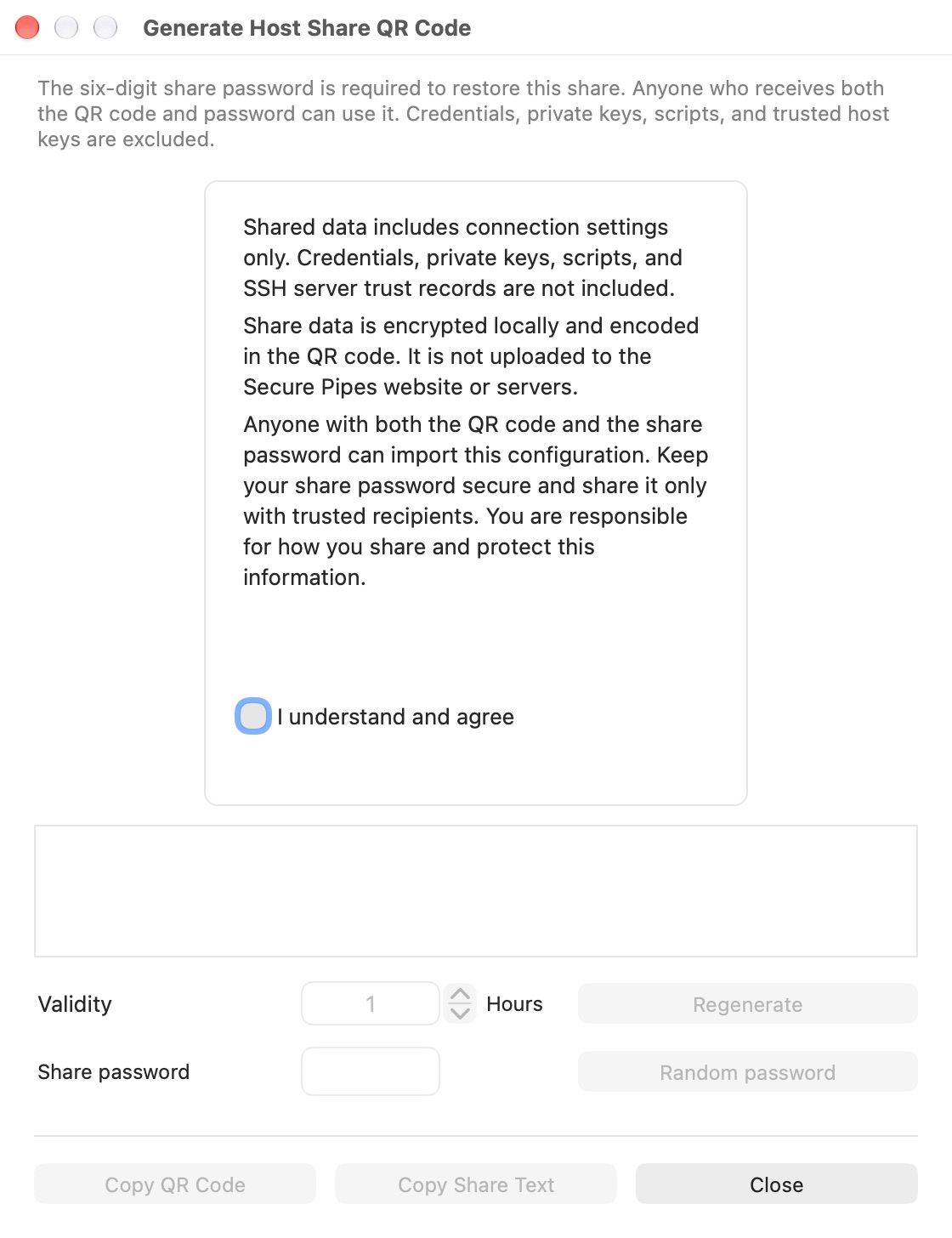
The dialog remains restricted until you acknowledge the notice. Share data is encrypted locally and encoded in the QR code. It is not uploaded to the Secure Pipes website or servers. Anyone who receives both the QR code and share password can import it.
The password protects the share, not the underlying server account. Share only with trusted recipients and preferably send the QR image and password through separate channels.
Generate and copy
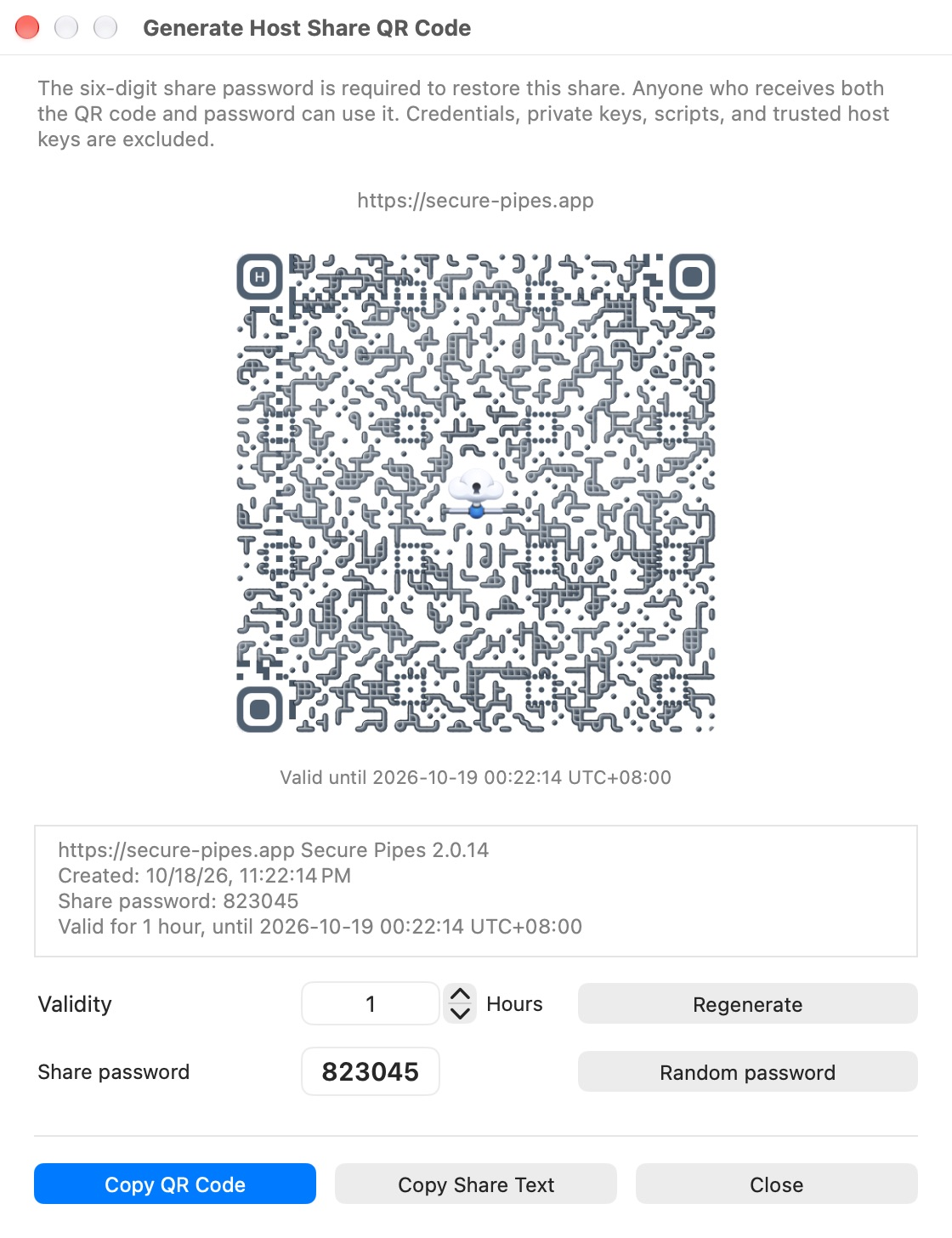
- Acknowledge the notice to display the QR code.
- Check the expiry. The default is 1 hour. Pro permits changing the validity up to 99 hours; the shared trial uses the permitted trial limit.
- Use Random password for a new six-digit share password. It is read-only rather than a custom editable password.
- Regenerate creates a fresh share with the current settings. Send the current QR code and its matching password together as a pair.
- Copy QR Code copies the image, including its URL and expiry caption, without attaching the separate share text.
- Copy Share Text copies the sharing text, including the generation time, expiry and share password. Anyone receiving that complete text has the password too.
The QR/password shown here belong only to a fictitious host and are not credentials for any real server. Do not use a screenshot from this manual as your configuration.
Import on another Mac
Choose + → Scan QR Code, select the QR code using the scan workflow, then enter its share password. The password entry should be ready for typing when shown. A valid share is decoded and restored using the app's configuration-import workflow. An unsuccessful scan/import returns to scanning so you can try a valid code.
After import, inspect the new settings. Provide your own credentials and identity files, and verify the SSH server's fingerprint before connecting. A share does not transfer the sender's trust decision.
Expiry and practical limits
An expired QR code cannot be used through the normal import flow. Expiry is checked locally; it is not remote revocation of an already imported configuration. Once someone has imported settings, regenerating or expiring a QR code does not erase their copy.
Share/import features require Pro after the shared seven-day trial. For a full personal configuration transfer, use encrypted backup and restore instead.
Based on Secure Pipes 2.0.14 · Updated October 18, 2026