
Security and preferences
Choose how the app behaves, protect access to its interface and keep authentication methods distinct.
Language, appearance and startup
Open General to choose the app language and light/dark/automatic themes. The console has its own appearance selection. These change presentation, not SSH authentication or routing.
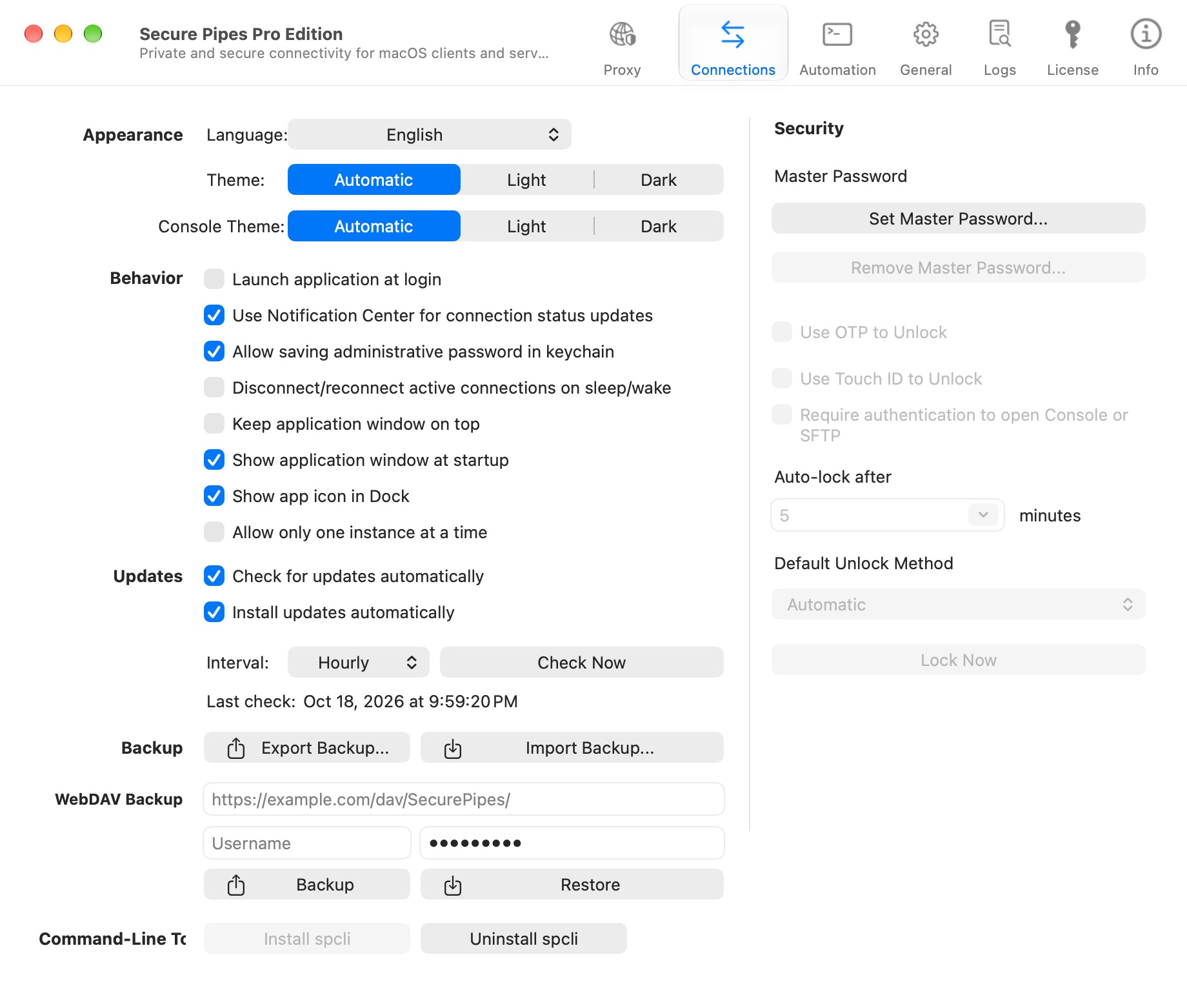
Other controls include launch at login, showing the window at startup, showing the Dock icon, notification updates, keeping the window on top and allowing only one running instance. App startup is different from a profile's Start this connection when Secure Pipes launches setting.
Review update settings and use Check Now when needed. You can find the exact installed version under Info.
Master password and Touch ID
Set Master Password… configures an app-interface lock. After a master password is set, supported controls can enable Touch ID, app OTP, an automatic lock interval and authentication before opening Console/SFTP.
Touch ID depends on compatible hardware and enrolled biometrics. App OTP is separate from an SSH server's OTP challenge. Keep recovery information safe when enabling it.
The interface lock does not disconnect active tunnels or replace remote authentication. Touch ID does not turn an unencrypted LAN proxy into an encrypted one.
Unlocking and forgotten passwords
The unlock window provides the configured methods. Click the master-password field if you want to use it; it is intentionally not automatically focused. The six-digit app OTP control accepts digit entry, deletion and paste, and verifies a complete code automatically.
If a master password is forgotten, read the recovery/removal warning carefully. Forced removal requires macOS device-owner authentication and clears affected host credentials and identity references before removing the app lock. It is not a harmless shortcut to recover a forgotten password, and private-key files on disk are not thereby recovered or replaced.
Connection-level safety
Keep strict host-key checking enabled. Prefer loopback local listeners and unused high ports. Enable automatic reconnection deliberately, and distinguish keepalive messages from useful application traffic.
Reconnection and SSH keepalives
Open a connection's editor and scroll to Options and Advanced Connection Options. Review these controls separately:
| Setting | Purpose |
|---|---|
| Start this connection when Secure Pipes launches | Start this saved profile when the app launches; this does not install or start the remote service. |
| Include this connection in the menu bar menu | Keep the profile accessible from the menu bar. |
| Automatically retry connection on disconnect after | Set the delay before a reconnection attempt after disconnection. |
| Send server alive messages every | Configure the interval for SSH liveness checks. |
| Disconnect after … unanswered server alive messages | Set how many unanswered checks are tolerated before treating the connection as lost. |
Keepalives help detect a lost SSH session; they do not make an unreachable destination work or guarantee that every idle network path stays open. A retry starts another connection attempt and may need authentication or a trust decision. Use Cancel Retry when you want to stop that process.
Add these options to SSH config selects OpenSSH compatibility mode for custom SSH options. Traffic figures in this mode are estimates; do not compare them directly with the precise backend counters as if both measured the same thing. Only add options whose effect you understand.
Connection-completion actions and local/remote scripts are described in Automation. Keep them disabled while troubleshooting the tunnel itself so that a failed follow-up action is not confused with an SSH connection failure.
Compression, custom SSH parameters, scripts and connection-completion actions are advanced per-profile settings. Custom SSH options use the OpenSSH compatibility path and may show estimated rather than precise traffic. Review scripts before enabling them: local scripts run on your Mac; remote scripts run with the permissions of the SSH account.
Protect exported information
Backups, copied LAN connection details and exported logs can reveal addresses, usernames or credentials. Review them before sharing. QR connection sharing excludes credentials, but it still discloses connection settings to anyone with the QR code and its share password.
See backup and restore and share QR codes for the safer workflow for each purpose.
Based on Secure Pipes 2.0.14 · Updated October 18, 2026