
Routing rules and traffic sources
Match the right device, application and destination before deciding whether a connection uses a proxy, goes direct or is denied.
Create a rule
Open Proxy → Rules → Add. Give the rule a useful name, leave Enabled checked, and choose its traffic source. Configure the application and destination conditions, protocol and action, then select a proxy server when the action is PROXY.
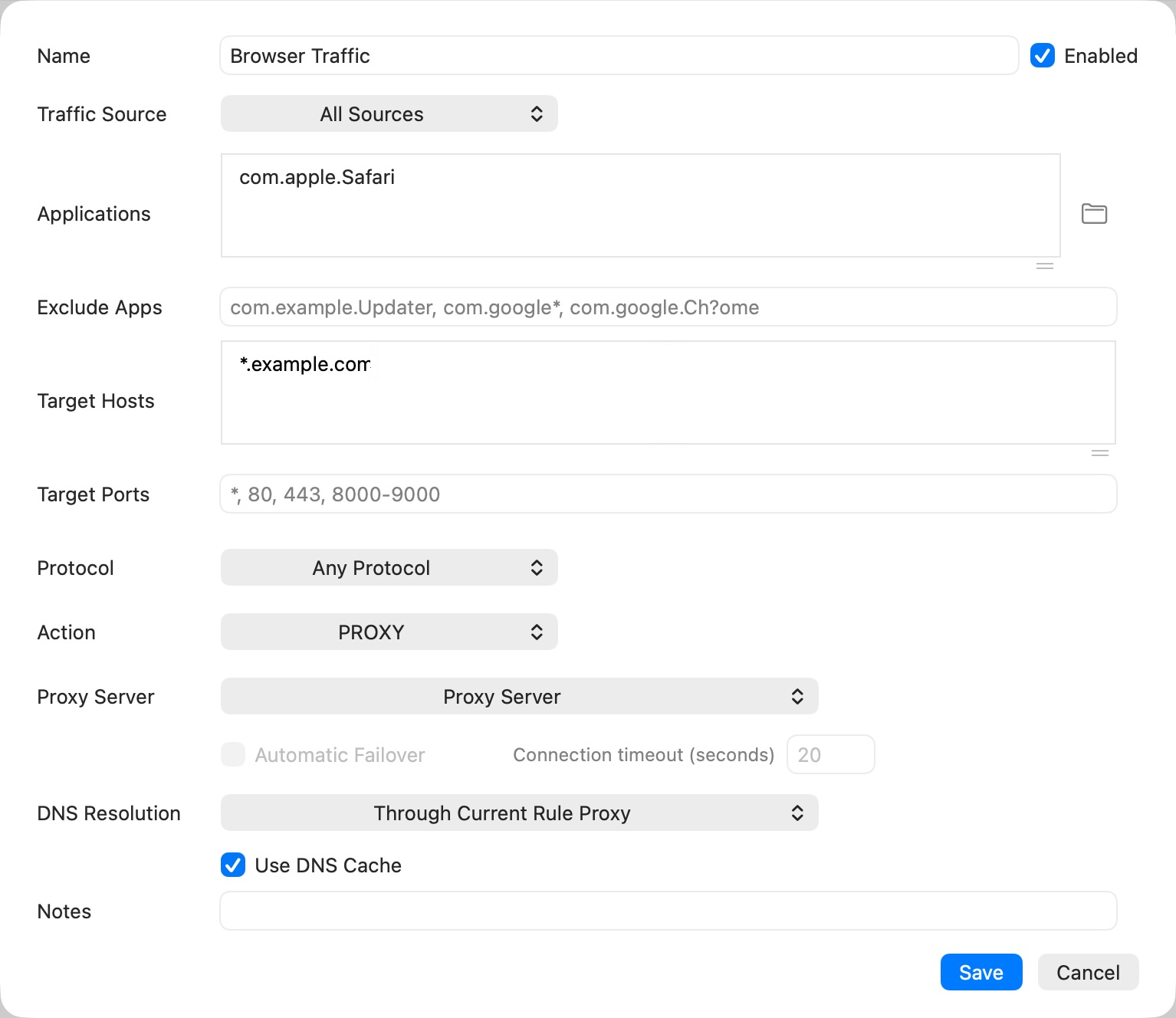
The screenshot shows a draft. Choose a working proxy server before saving a PROXY rule. Use Choose Applications… rather than guessing an application's identifier. Excluded applications do not match that rule.
Choose a traffic source
| Source | Intended use |
|---|---|
| All Sources | A destination policy that may apply to both this Mac and LAN clients |
| This Mac | Traffic originating from applications on this Mac |
| LAN Devices | Connections entering through the LAN sharing path |
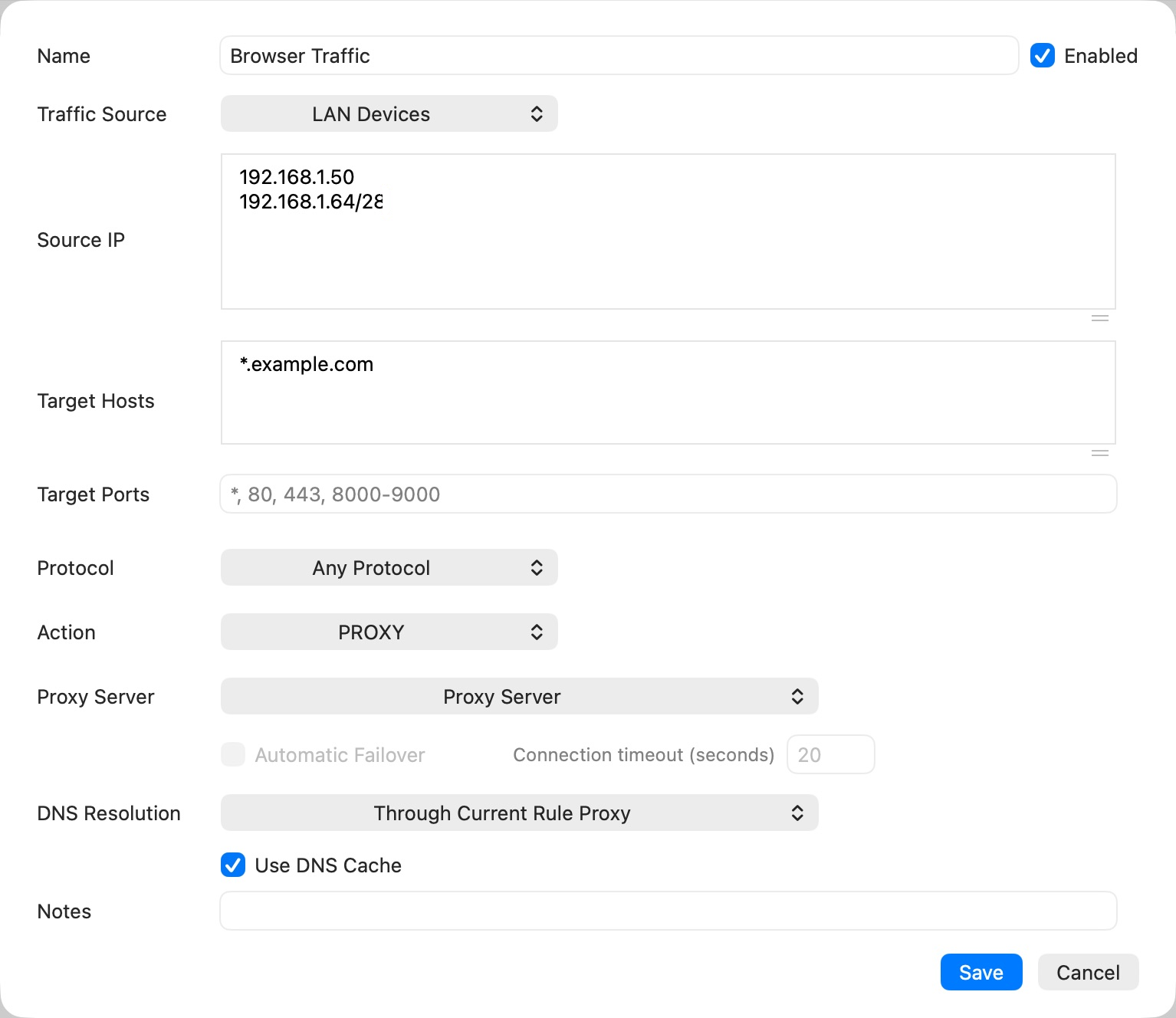
When LAN Devices is selected, Source IP replaces the application/exclusion fields. The Mac cannot read an app identity from a phone's proxy request. To make a phone-specific route, use LAN Devices plus that phone's address, not its browser's Mac application identifier.
Match source IP addresses
Blank or * matches all eligible LAN devices. Supported forms include:
| Example | Meaning |
|---|---|
192.168.1.50 |
One device |
192.168.1.50-192.168.1.80 |
An inclusive IPv4 range |
192.168.1.0/24 |
An IPv4 CIDR subnet |
192.168.1.* |
IPv4 wildcard |
192.168.1.1? |
One wildcard digit in the last octet |
Separate groups with newlines, commas or semicolons. These are examples, not required network addresses. Use your actual subnet. A router's DHCP reservation helps a rule keep identifying the same phone over time.
Match the destination
Use Target Hosts and Target Ports to narrow the rule. The port field accepts individual ports and ranges, such as 80, 443, 8000-9000. Select Any Protocol, TCP or UDP as appropriate.
A hostname rule needs the original name or an available DNS association. An IP-only request cannot always be mapped back to its original domain. Use proxy-side DNS in SOCKS clients where supported; do not assume a domain can always be reconstructed.
Select an action and DNS policy
- DIRECT: connect without the selected upstream proxy.
- PROXY: use the configured server and any explicitly configured failover candidates.
- DENY: reject matching traffic.
Automatic failover and timeout settings belong to the configured route. Choose fallback servers deliberately. A fallback to DIRECT changes the privacy of the route.
To configure proxy failover, choose PROXY, open Proxy Server, and select at least two proxy servers. Put the preferred server first and reorder the selected entries into the desired fallback sequence. Enable Automatic Failover, then set Connection timeout (seconds) between 3 and 60; the initial value is 20. The selected route is displayed as a sequence such as Primary > Backup.
With fewer than two selected servers, Automatic Failover is unavailable. Treat it as a connection-recovery choice, not a promise that an established stream can move between proxies without interruption. A successful switch also depends on the replacement proxy reaching the target.
DNS Resolution selects the rule's active proxy or global DNS settings for matching DNS queries. Use DNS Cache controls whether the rule reads and stores cached answers. See DNS settings.
Order and verify rules
Rules are evaluated in order. Put specific exceptions before broad catch-all rules. Use the drag handle to adjust priority. Keep local services reachable, and inspect the Default action for unmatched traffic.
Test one application/destination at a time and check the active connection's Rule / Proxy. A LAN-only rule must not be used to explain a connection whose source is This Mac. Rule changes apply to new connections; existing streams may retain their original route.
Based on Secure Pipes 2.0.14 · Updated October 18, 2026