
Local port forwarding on macOS
Reach a remote database, web service or Unix socket through a port on your Mac, without exposing that service directly.
How the tunnel works
A client connects to a local listener on your Mac. Secure Pipes carries the stream over SSH. The SSH server then connects to the configured remote target. The target does not have to be the SSH server itself: it must be reachable from that server.
The example below maps 127.0.0.1:15432 on your Mac to 127.0.0.1:5432 as seen by the SSH server. These two loopback addresses refer to different computers.
Configure a local forward
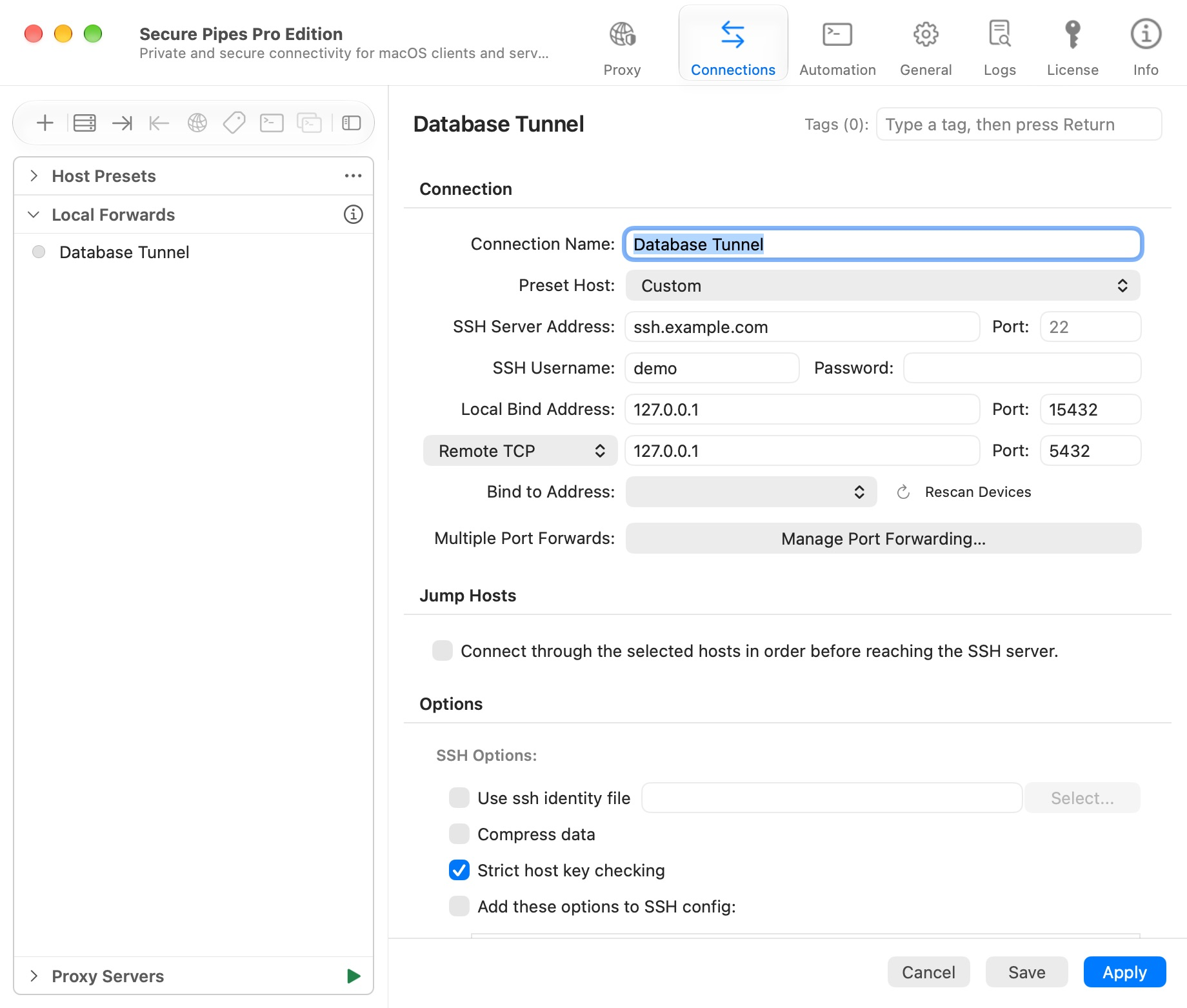
- Choose Connections → + → New Local Forward….
- Enter a descriptive connection name and select a Preset Host, or enter custom SSH details.
- Set Local Bind Address to
127.0.0.1and its port to15432. - Choose Remote TCP and enter target address
127.0.0.1, port5432. - Keep Strict host key checking enabled. Configure the password or identity file.
- Click Add, then Connect from the saved profile.
- Once connected, configure your database client for host
127.0.0.1, port15432. The database still uses its own authentication.
The SSH server must permit forwarding. The destination service must be running and reachable from that server. A connected tunnel does not remove application-level authentication.
Manage multiple mappings
Click Manage Port Forwarding… in the editor. A profile can contain up to 128 mappings, including the first row. Multiple local/remote mappings require Pro after the shared seven-day trial.
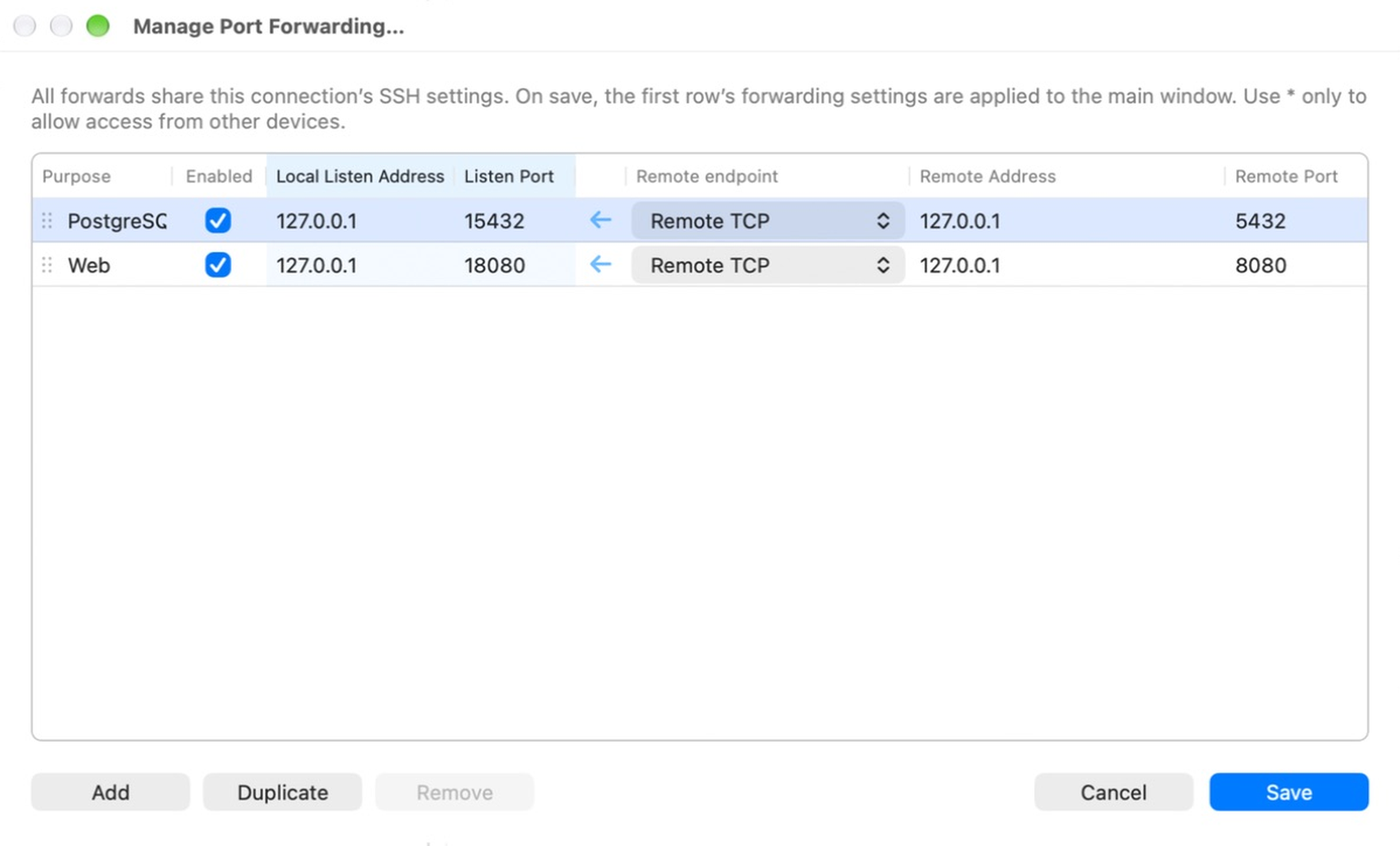
- Purpose is a note; it does not change routing.
- Enabled controls whether that row creates a listener on the next connection.
- Click a cell to edit. Add inherits the preceding addresses and leaves ports blank.
- Duplicate or ⌘D copies a row; assign a different listener port before saving.
- Drag the row handle to reorder. Saving makes the first row the main editor's mapping.
- The first row cannot be removed directly. Disable it or reorder as appropriate.
- Save applies the table draft to the editor; save the connection editor as well. Cancel discards the table draft.
All mappings share the profile's SSH settings and lifecycle. They do not each create an independent SSH connection. Disconnecting the profile stops its mappings. Editing a saved profile does not hot-reconfigure an already running SSH session; reconnect to apply changes.
Use a Unix socket target
Choose Remote Unix Socket and enter an absolute path on the SSH server, such as /var/run/service.sock. The target port becomes disabled. This still uses a local TCP listener; the destination is a Unix socket. The SSH account needs permission to access that socket.
Socket paths must meet the app's validation rules. Use an absolute path without spaces, quotes, control characters or #, and keep it within the supported length. Socket menus provide common paths and history.
Listener safety and troubleshooting
Use loopback for services intended only for your Mac. Binding to 0.0.0.0 or * can expose the listener to other computers, subject to the network and firewall. A forwarded database is still a database: restrict who can reach it.
If startup fails, check the failing row and port in the error/log. A used local port can prevent the profile from starting. Prefer unused high ports such as 15432 rather than privileged low ports.
Local port forwarding carries TCP, not ordinary UDP. UDP support under SOCKS is a different feature; see SOCKS proxy.
Based on Secure Pipes 2.0.14 · Updated October 18, 2026