
Share proxy routing with LAN devices
Let a phone or another computer use your Mac's routing rules through an authenticated HTTP/SOCKS proxy entry.
What is shared
LAN Sharing reuses the transparent proxy's routing configuration: destination rules, DIRECT, DENY and configured proxy servers. It is not limited to one SOCKS profile. Start the transparent proxy first, then open Proxy → Servers → LAN Sharing….
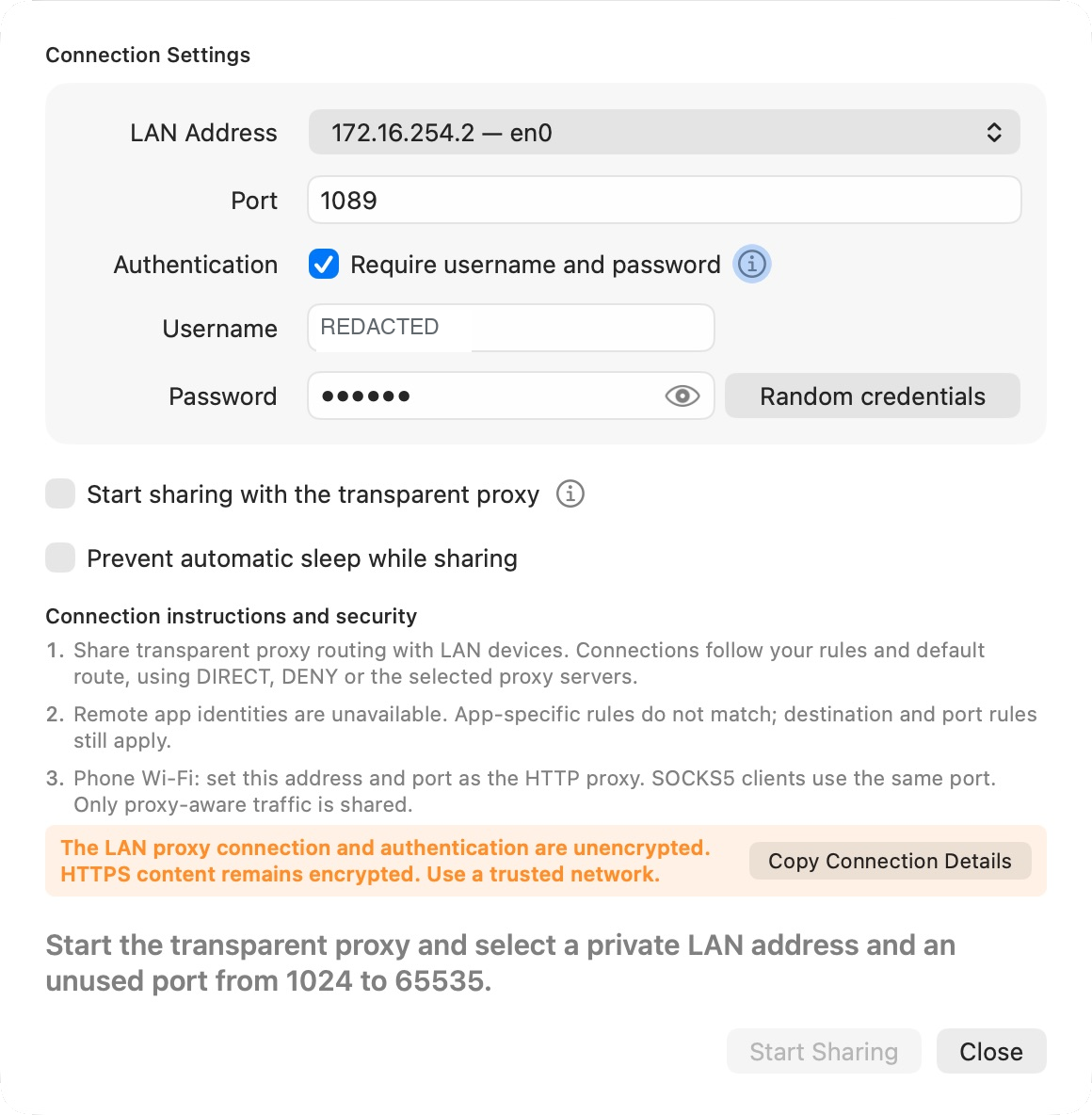
This is a proxy entry for applications that support HTTP or SOCKS. It is not a VPN, a default network gateway or a promise to route every packet from a phone. Apps that ignore the Wi-Fi proxy can bypass it.
Configure the Mac
- Select the private LAN Address belonging to the network your client device uses.
- Choose an unused high port, such as the default 1089.
- Keep Require username and password enabled. The app provides random credentials; Random credentials replaces both. You can customize them while sharing is stopped.
- Use the eye inside the password field to reveal or conceal it when needed.
- Click Start Sharing. Check that the status indicates sharing is running.
The address in the screenshot belongs to the documentation environment. Your address depends on the selected interface. Do not copy it unless it is actually your Mac's address.
Connect a phone
On a phone's Wi-Fi network details, choose Configure Proxy → Manual (wording differs by device). Enter the Mac's selected LAN address as the HTTP proxy server, its sharing port, and the sharing credentials if authentication is enabled.
Keep both devices on a network that permits communication between clients. Guest Wi-Fi isolation can prevent access even when both devices appear to share a network name. Test one browser page first.
For a SOCKS-aware client, choose SOCKS5 at the same address/port. Use proxy-side DNS where available. UDP requires an actual SOCKS5 UDP ASSOCIATE client; manual HTTP proxy settings do not carry arbitrary UDP/QUIC traffic.
Apply phone-specific rules
Create a rule with Traffic Source → LAN Devices, then match the phone's Source IP and desired destinations. Local Mac application rules cannot identify Android or iOS apps. Reserve the phone's IP on your router if you depend on it for policy.
See source IP patterns and rule ordering. The default route still matters when no rule matches.
Copy connection details
Copy Connection Details opens a popover containing general host/port information, HTTP/HTTPS and SOCKS5 URLs, and shell export formats. Each copy icon copies its own entry. Authentication is included in copied values when enabled, so treat the clipboard and pasted commands as sensitive.
Do not paste real credentials into issue reports, public documentation or shared terminal history. The general format is useful for clients with separate protocol controls; select the actual protocol in that client.
Startup, sleep and stopping
- Start sharing with the transparent proxy uses the selected interface's current LAN address.
- Sharing stops when the transparent proxy stops, the Mac sleeps or the app quits. Closing the sharing window alone does not stop sharing.
- After a manual stop, automatic sharing waits until the next transparent-proxy start.
- Prevent automatic sleep while sharing keeps the Mac awake while sharing runs. It does not override manual sleep, lid closure or low-battery protection; the display may still turn off.
Stop sharing before changing its listener or authentication mode.
Security limits
The LAN proxy connection and its authentication are unencrypted. HTTPS content remains encrypted end to end. Use a trusted network.
If you disable authentication, devices in the selected LAN subnet can use the entry. Keep authentication enabled unless you understand and accept that exposure. A shared proxy is not a replacement for Wi-Fi security or application-level encryption.
Based on Secure Pipes 2.0.14 · Updated October 18, 2026