
Getting started with Secure Pipes
Create your first SSH tunnel on macOS, understand the main pages, and know what to check before connecting.
Before you begin
Secure Pipes is a menu bar SSH connection manager for macOS 12 or later. You need access to an SSH server, its address and port, an account permitted to connect, and either a password or a suitable private key. Secure Pipes does not provide an SSH server or a proxy subscription.
Download the app from secure-pipes.app, open the disk image and copy Secure Pipes to Applications. Launch the app from Applications. A system-extension approval is needed for transparent proxying, not for an ordinary high-port SSH tunnel.
The screenshots in this guide use the English interface and illustrative settings. ssh.example.com is a placeholder, not a working service. Change it to your own server. Screenshots demonstrate the configuration workflow, not a successful connection to that example server.
Find your way around
| Page | What you do there |
|---|---|
| Connections | Save hosts, configure local/remote tunnels and SOCKS proxies, open consoles and SFTP |
| Proxy | Manage routing servers, DNS, rules and active proxy connections |
| Automation | Read and copy AppleScript and spcli examples |
| General | Choose language and appearance, configure app locking, export backups |
| Logs | Filter events and inspect connection problems |
| License | View Free/Pro limits, trial availability and activation |
| Info | Check the version, website and issue-reporting link |
The menu bar remains useful when you close the main window. Closing a window is different from quitting: quitting stops active connections.
Create a reusable host
- Open Connections, click +, and choose New Host Preset….
- Give the host a clear name, then enter the SSH server address, SSH port and username.
- Enter a password or select Private key and choose your identity file. You can leave credentials unset and provide them when needed.
- Save the host. It appears under Host Presets.
See SSH hosts and authentication for keys, jump hosts and server trust.
Create your first tunnel
For a database listening on port 5432 on the SSH server:
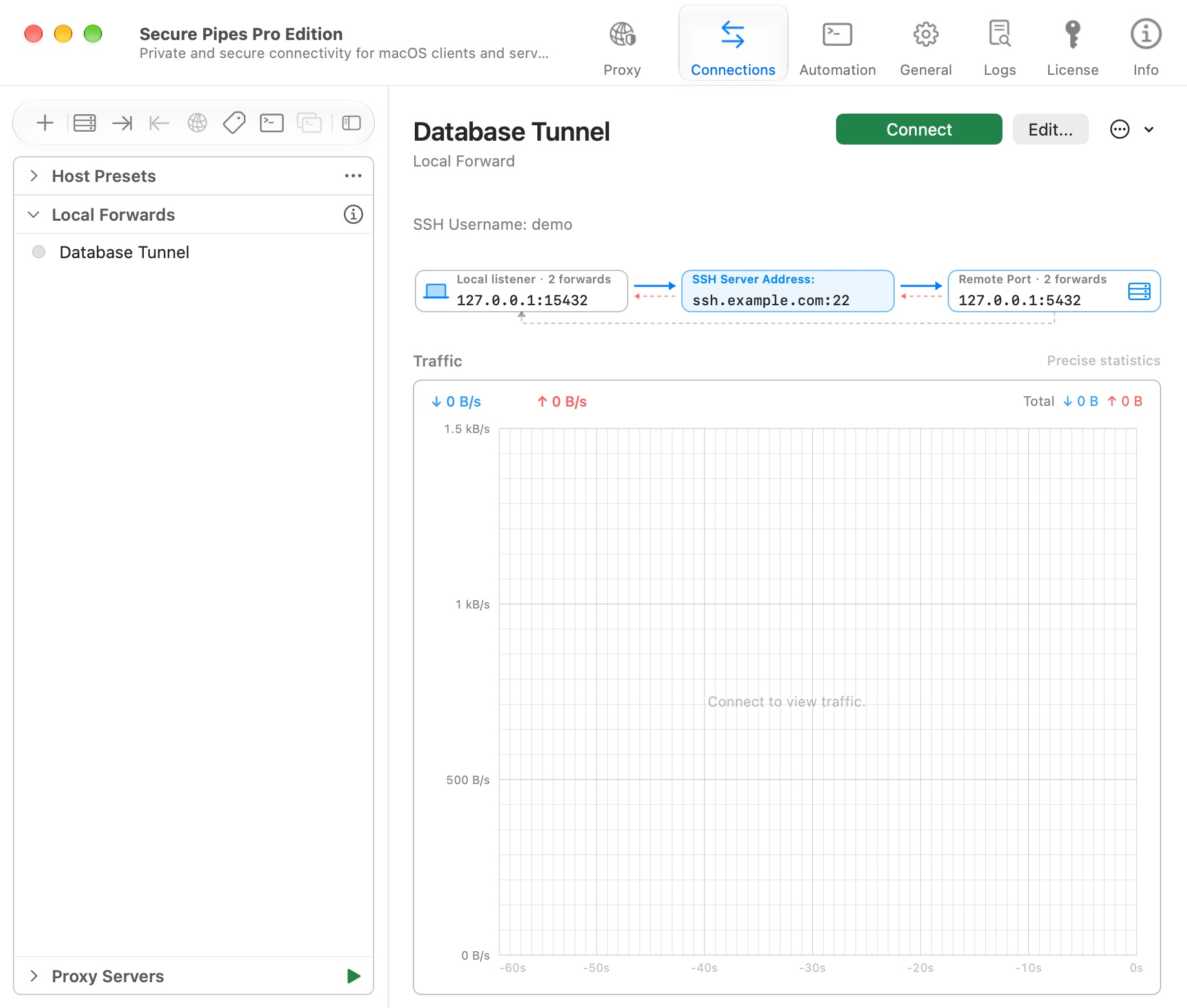
- Choose + → New Local Forward… and name it Database Tunnel.
- Select your preset host, or fill in the SSH details directly.
- Set the local listener to 127.0.0.1, port 15432.
- Set the remote TCP address to 127.0.0.1, port 5432. Here, the remote address is interpreted from the SSH server.
- Add the profile and click Connect. If asked, supply the missing authentication information.
- On first use, compare the server fingerprint with a trusted value from your server administrator before accepting it.
- Once connected, point your database client to 127.0.0.1:15432.
See local port forwarding for the field-by-field explanation and multiple mappings.
Check the result
A saved profile is not necessarily connected. Check its state, then test it using the intended client application. A connected SSH session can still encounter a refused destination port or a server forwarding restriction.
Use Disconnect when finished. Keep loopback listeners unless other devices explicitly need access. Before experimenting with many profiles, make an encrypted backup.
Pick the right connection type
- Local Forward: reach a particular remote TCP service or remote Unix socket from a local port.
- Remote Forward: let the SSH server reach a service on your Mac through a server-side listener.
- SOCKS Proxy: give a proxy-aware application a local SOCKS endpoint with destinations selected by that application.
- Transparent Proxy: route supported Mac application traffic according to rules, after installing and approving the system extension.
- LAN Sharing: let proxy-aware devices use your existing transparent-routing configuration through an HTTP/SOCKS entry.
For task-oriented examples, open use cases.
Organize and manage connections
Use clear names for profiles that differ only by destination or environment. To reuse a setup, select Duplicate from the profile's actions, then edit the copy's name, listener and destination before connecting it. A copied listener port can conflict with the original when both profiles run.
Add labels in the editor's Tags field, then use Connection Groups in the toolbar to view connections grouped by tag. Tags are also the group names used by AppleScript and spcli. Review the members before issuing a group command. Available tag capacity depends on the current license.
The list-options menu includes New Category, Expand One Group at a Time, Show Item Subtitles and Show Item Counts where applicable. Categories organize the connection list; do not assume that a category name is an automation tag.
For entries under Local SSH Config, Copy as Host Preset creates an app-managed preset from the selected SSH configuration entry. This is different from editing the original SSH config file. Keep that distinction in mind when later changing the preset.
Use Disconnect to stop a tunnel; deleting its saved profile is a separate action. If the menu shows Cancel Retry, the profile is waiting to reconnect. Cancel that retry before changing the setup you are diagnosing.
Based on Secure Pipes 2.0.14 · Updated October 18, 2026