
Automate with AppleScript and spcli
Start saved connections and tagged groups from scripts while keeping connection configuration in the app.
Use the built-in reference
Open Automation. It provides AppleScript and Command line (spcli) tabs with editable examples and copy controls. Start by listing names rather than guessing them.
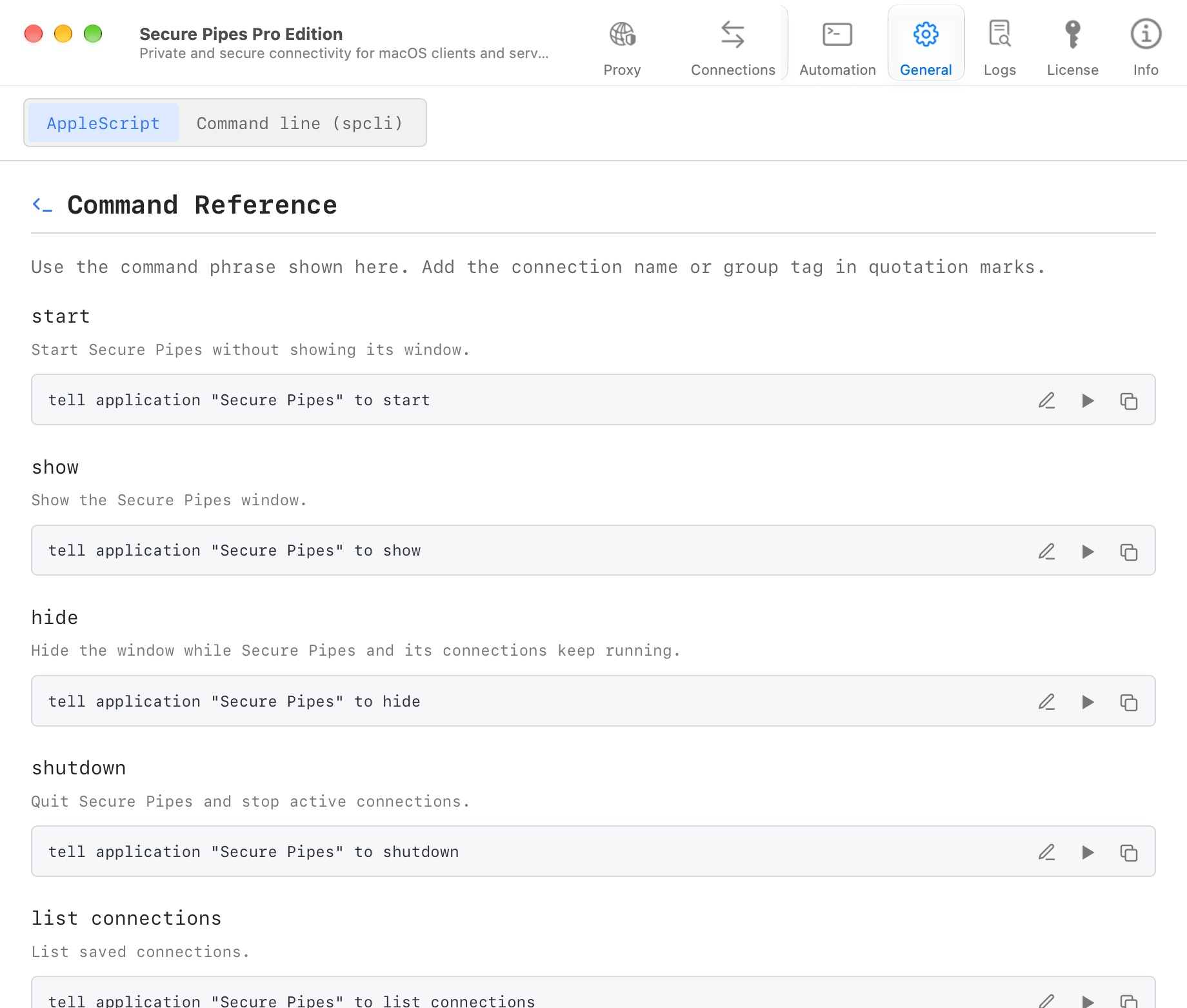
Automation is a Pro feature after the shared seven-day trial. macOS may ask the calling application, such as Terminal, for permission to control Secure Pipes. Allow that only for a caller you trust.
List connections with AppleScript
osascript -e 'tell application "Secure Pipes" to list connections'
Use a returned name in subsequent commands. Where names repeat, use the full name with its connection type as shown by the app.
tell application "Secure Pipes"
    connect connection "Database Tunnel (Local Forward)"
    connection status "Database Tunnel (Local Forward)"
end tell
Starting a connection is asynchronous. Check status rather than assuming the command's return means the tunnel is ready. Authentication, host trust and errors can require user attention.
Control groups
Groups are tags assigned to connection profiles. The group commands act on matching profiles:
tell application "Secure Pipes"
    list connection groups
    connect group "engineering"
    disconnect group "engineering"
end tell
Review every member before starting a group. A group operation can start multiple real listeners. Use disconnect connection to stop one profile rather than an entire group.
Install and use spcli
In General → Command-Line Tool, choose Install spcli if it is not installed. Open a terminal and run:
spcli --help
Use the installed version's help and the Command line (spcli) tab for exact commands and options. Keep private keys and passwords out of command arguments, shell history and scripts. spcli operates on the app's saved setup; it is not a replacement for server-side authorization.
Common spcli commands
Start with read-only discovery:
spcli list connections
spcli list groups
spcli list connections --json
Replace the demonstration connection name below with the exact name returned by your installed app. Run each command when you need that action; this block is not a script to run all at once.
spcli connect "Database Tunnel (Local Forward)"
spcli status "Database Tunnel (Local Forward)"
spcli status "Database Tunnel (Local Forward)" --json
spcli disconnect "Database Tunnel (Local Forward)"
As with AppleScript, a successful connect command does not prove that the destination is ready. Inspect status and handle authentication or host-trust prompts in the app before starting dependent work.
For a tag named engineering, use spcli connect-group "engineering" or spcli disconnect-group "engineering". Check the membership first: these commands affect the whole matching group.
| Command | Effect |
|---|---|
spcli start |
Start Secure Pipes without showing its window |
spcli show |
Show and activate the app window |
spcli hide |
Hide the app windows without quitting |
spcli shutdown |
Quit the app; active connections are stopped |
For scripts, check the exit code: 0 means command success, 1 an app-reported error, 2 invalid usage, 3 an app launch or Automation-permission problem, and 4 an Apple Event send, timeout or reply failure. --json is available for list and status commands. Preserve the returned status text rather than assuming it is an untranslated constant.
Scripts and connection completion
Per-connection settings can run a local script or supported completion action after connection. Remote forwards also expose a remote-script option. These are separate from AppleScript controlling the app.
Only enable scripts you understand and trust. Do not put secrets in exported script examples. Use the built-in examples' bounded status-wait pattern when a later task depends on the connection being ready, and handle failure states instead of waiting forever.
Based on Secure Pipes 2.0.14 · Updated October 18, 2026